Rust is one of the most demanding games you can host. A freshly provisioned server with default settings runs fine for a handful of players, but push toward 50 or 100 active users — each building multi-storey bases, running farms, raiding with explosive charges — and performance degrades fast. The good news: the majority of Rust lag is configuration lag, not hardware lag. Changing a handful of settings can cut average server frame time in half.
Why Rust Servers Lag: The Root Causes
Before tuning anything, it's worth understanding the three main sources of Rust server lag:
- Entity tick overhead — Every placed object (wall, door, sleeping bag, campfire, barrel), every dropped item, every NPC, and every deployed trap is an "entity" that the server processes every tick. A mature server can accumulate hundreds of thousands of entities, and the cost compounds linearly.
- Garbage collection (GC) pauses — Rust's server runs on Unity/Mono, which uses a mark-and-sweep garbage collector. When the GC runs, it briefly stops all game logic. Poorly configured GC settings turn these brief pauses into perceptible hitches every few seconds.
- Chunk generation and streaming — When players explore unseen territory, the server generates terrain on the fly. On large maps this is CPU-intensive and causes brief frame spikes. Larger worlds mean more generation load sustained over a longer period.
server.cfg — The Essential File
All the following settings belong in your server/cfg/server.cfg file. You can edit it through AMP's file manager or the Configuration tab. Save the file and restart the server to apply changes.
Tick Rate
server.tickrate 30The default tick rate is 30 server updates per second. Increasing to 64 makes movement and combat feel smoother but nearly doubles CPU usage. On an Octohost Small plan (1 vCPU), stay at 30. On Large (2 vCPUs), you can experiment with 40–50 if entity counts are managed.
Player Cap
server.maxplayers 75Set a realistic player cap. Don't configure 200 slots if your RAM can't support it. As a rough guide: 2 GB RAM supports up to 40 active players on a clean server; 4 GB supports 75–100; 8 GB supports 150+.
World Size
server.worldsize 3500The default world size is 4000. Dropping to 3500 reduces initial generation time, peak RAM usage during generation, and the total number of NPC spawn points — all without meaningfully hurting the player experience. On servers with fewer than 50 players, 3000 is workable.
Item Despawn
server.itemdespawn 120Dropped items are entities. The default despawn time is 300 seconds (5 minutes). On populated servers, the ground after a raid is littered with thousands of dropped items that persist for minutes. Setting this to 120 seconds cuts that entity load dramatically during active periods.
Fixed World Seed
server.seed 12345Fix a seed so you have a known, reproducible map. This lets you plan wipe schedules around map layouts and reference the Rust map tools for monument positions.
Decay Rate
decay.scale 0.5Building decay removes abandoned structures from the world. Setting this to 0.5 (half the default rate) gives players more time to upkeep their bases but also means the server accumulates entity debt more slowly. On heavily populated servers approaching wipe, lowering decay actually delays the performance cliff.
Reducing Entity Count: Your Most Powerful Lever
Entity count is the single biggest controllable variable on a mature Rust server. A server at day 1 of a wipe might have 50,000 entities. By day 28, that same server can have 800,000+. Here's how to keep it in check:
Remove Banned Players' Entities
entity.deleteBy [steamID]When you ban a player for cheating or griefing, running this command immediately removes every entity they placed. On populated servers this can instantly remove tens of thousands of entities.
Scheduled Wipes
The most effective entity control strategy is a regular wipe schedule. Monthly wipes work for most communities; bi-weekly wipes are common on large PvP servers. Communicate your wipe schedule clearly in your server description — players expect it and plan around it.
Entity Count Monitoring
Use the server console to check live entity count:
ent countWatch for counts above 400,000 — that's when you'll start noticing performance impact on a Medium plan server. Above 700,000, even a Large plan will show strain.
Garbage Collection Tuning
Add these to your startup command in AMP's Startup Parameters section:
+gc.buffer 256
+gc.disablelogging true
The first tells the Mono runtime to allocate 256 MB as a GC buffer before triggering a collection cycle. This trades slightly higher constant RAM usage for less frequent collection pauses. The second suppresses GC log messages in the console — purely cosmetic, but it keeps your console readable during high-activity periods.
You can also add the following to reduce allocation frequency for large servers:
+gc.incremental trueThis enables incremental GC, which spreads collection work across multiple frames rather than doing it all at once. The result is smaller, more frequent micro-pauses rather than occasional large hitches.
Oxide Plugin Overhead: Profile Before You Add
If you're running uMod (Oxide), every plugin you install hooks into server events. Even a well-written plugin adds overhead to every player action, every entity spawn, and every tick. Here's how to keep plugin overhead under control:
Profile Your Hooks
In the server console, run:
oxide.show hooksThis displays which hooks fire most frequently and how many plugins are subscribed to each. A hook called 50,000 times per minute with 8 plugins subscribed is a red flag.
Disable Unused Plugins
Every installed plugin consumes memory and subscribes to hooks even when no one is using its features. Audit your plugin list monthly. If you installed AirdropSettings three months ago and nobody uses it, remove it.
Watch for Hook Conflicts
Two plugins that both modify the same hook (e.g., two anti-cheat plugins both handling OnEntityTakeDamage) don't cancel each other out — they both run, doubling the overhead. Consolidate overlapping functionality.
| Plugin Type | CPU Impact | Recommendation |
|---|---|---|
| Anti-cheat | High | Use one only |
| PvP stats tracker | Medium | Ensure it uses async writes |
| Base protections | Low-Medium | Fine on most plans |
| Cosmetics (skins) | Very Low | No concern |
| Economy systems | Low | Fine if using SQLite |
World Size Strategy
World size has compounding effects beyond RAM. Larger worlds mean:
- More procedurally placed monuments (each with NPC spawns)
- More potential player spread, causing more active chunks
- Longer initial generation time on server start (relevant for wipe day)
- Larger map download for new players connecting
Match your world size to your player count:
| Server Size | Recommended World Size |
|---|---|
| Small community (up to 40 players) | 2500–3000 |
| Medium server (40–100 players) | 3000–3500 |
| Large server (100–200 players) | 3500–4000 |
| Massive server (200+ players) | 4000–4500 |
Backups Without Lag Spikes
By default, the Rust server saves the world periodically and this triggers a noticeable frame spike. You can control when saves happen:
server.saveinterval 600This sets the autosave interval to 600 seconds (10 minutes). The default is 300 seconds. Doubling the interval halves the frequency of save spikes at the cost of potentially losing 10 minutes of progress if the server crashes unexpectedly.
For backups, use AMP's scheduler to trigger a world backup during off-peak hours (e.g. 4:00 AM). Schedule the backup action after a Stop / Backup / Start sequence to ensure a clean save state.
Monitoring Performance in Real Time
Use these server console commands to understand what's happening under the hood:
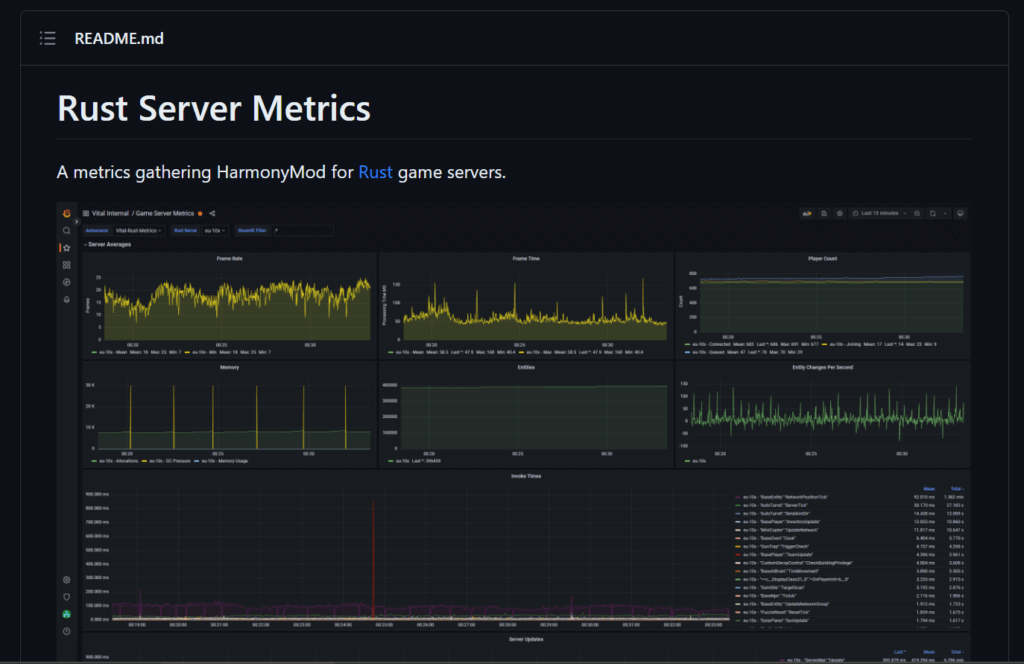
perf 1— toggles a real-time performance overlay showing server FPS, entity count, and memory usage. Healthy servers should sit above 30 FPS. Below 20 is a problem.gc.collect— manually triggers a GC cycle. Useful during low-traffic periods to reclaim memory before peak hours.status— shows connected players, their ping, and their Steam IDs.pools.disable_memory_pools true/false— disabling memory pools frees more RAM at the cost of higher allocation frequency. Experiment on large-RAM plans.
Choosing the Right Plan for Rust
Rust is significantly more demanding than most other games in our library. Here's what we recommend based on server type:
| Server Type | Recommended Plan | Notes |
|---|---|---|
| Private friends server (up to 20 players) | Small (2 GB) | Keep entity count managed |
| Community server (20–75 players) | Medium (4 GB) | Recommended starting point |
| Large PvP server (75–150 players) | Large (8 GB) | Apply all optimisations above |
Still have questions? Join our Discord server — we have a #server-help channel specifically for performance questions.