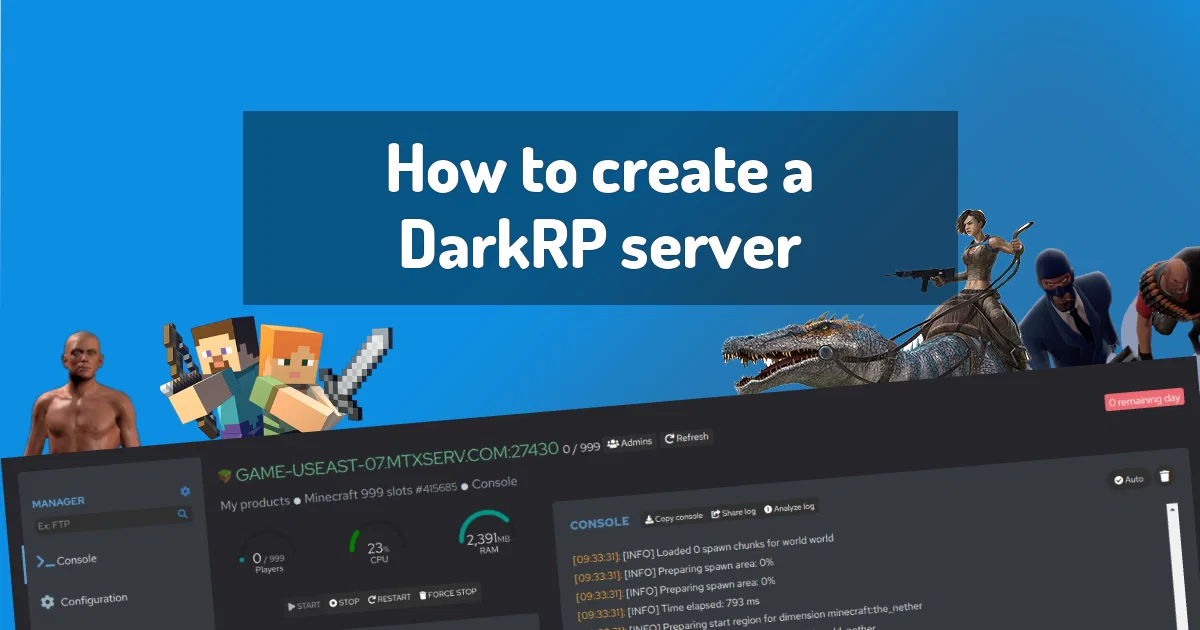
So you've finally decided to ditch the overcrowded public servers and run your own world. Smart move. A private Minecraft server on Octohost gives you complete control — your rules, your mods, your whitelist. Better still, you'll be online in under 10 minutes from now. Let's walk through every step.
Choosing the Right Plan
RAM is the most important variable in Minecraft server performance. The amount you need depends on two things: how many players will be online simultaneously, and what kind of gameplay you're running (vanilla, lightly modded, or a heavy modpack).
| Plan | RAM | Vanilla Players | Modpack Players |
|---|---|---|---|
| Small | 2 GB | Up to 10 | Up to 5 (light packs) |
| Medium | 4 GB | 10–25 | 10–15 |
| Large | 8 GB | 25–50 | 20–30 |
If you're unsure, always start with Small. You can upgrade to a larger plan any time from the billing portal, and your world data transfers automatically with no downtime required.
Completing Checkout
Head to the Pricing page and select your plan and billing period. During checkout you'll be asked for:
- Server Location — US East, US West, or EU (Frankfurt). Pick the region closest to most of your players.
- Billing Period — Monthly (best rate) or Weekly (most flexible).
- Payment Method — Credit/debit card processed securely. We don't store card numbers.
Hit Launch Server and the provisioning process starts immediately. Your server will be live within 3–5 minutes.
Navigating the AMP Control Panel
Once provisioned, you'll receive an email with your AMP control panel URL (something like https://104.21.x.x:8080/), a username, and a temporary password. Log in and you'll see your Minecraft instance listed.
The AMP dashboard gives you:
- Start / Stop / Restart — one-click server controls.
- Console — live output feed. Type commands directly here (e.g.
/op yourname). - Configuration — a graphical editor for
server.properties. No manual file editing required. - File Manager — upload mods, texture packs, world seeds.
- Scheduler — automate restarts and backups.
- Players — see who's online, kick, ban, or whitelist directly.
Configuring server.properties
Before you invite anyone, take 2 minutes to configure the key settings in AMP's Configuration tab:
Set your world name and seed
Change level-name to something descriptive (e.g. survival-world-2018). Optionally set level-seed to a specific number if you want a known map. Leave it blank for random generation.
Set max players and difficulty
Set max-players to a realistic number your RAM plan supports. Set difficulty to normal or hard — easy mode tends to reduce mob spawning and makes the game feel hollow on survival servers.
Enable whitelist (recommended)
Set white-list=true. Then in the AMP console, run /whitelist add [playername] for each person you want to allow. This prevents random strangers from joining and griefing your world.
Set MOTD and online-mode
The motd field is what players see in their server list — make it descriptive. Keep online-mode=true unless you specifically need to support cracked clients.
Choosing the Right Server JAR
By default, Octohost installs the official vanilla Minecraft server JAR. Depending on your use case, you may want to switch:
| JAR | Best For | Plugin Support | Performance |
|---|---|---|---|
| Vanilla | Pure vanilla experience | None | Baseline |
| Paper | Most survival servers | Bukkit/Spigot | Significantly better than vanilla |
| Purpur | High-pop survival | Bukkit/Spigot | Best of the three |
| Forge | Mod packs (client+server) | Forge mods | Depends on mods |
| Fabric | Lightweight mods | Fabric mods | Very good |
For most survival servers with friends, Paper is the right choice. It's a drop-in replacement for vanilla, runs substantially faster (better TPS under load), and lets you install popular plugins like EssentialsX, WorldEdit, and LuckPerms.
To switch JARs, go to AMP → Update/Install → search for Paper Minecraft. AMP downloads and configures everything automatically.
Essential Plugins for Paper Servers
If you're running Paper, these plugins are worth installing immediately:
- EssentialsX — adds /home, /spawn, /warp, /tpa, economy commands, and dozens of quality-of-life features. The de facto standard plugin for Paper servers.
- WorldEdit — powerful in-game map editing. Lets admins reshape terrain, copy/paste structures, and fix griefing fast.
- LuckPerms — the best permission management plugin. Assign ranks and fine-grained permissions to players and groups.
- CoreProtect — logs every block place and break. If someone griefs your world, you can roll back damage per-player. Essential for public servers.
- Dynmap — generates a real-time interactive web map of your world. Players can view it in a browser. Great for large servers.
Automated Backups
AMP's built-in task scheduler makes backup automation simple. Go to Scheduling in AMP and create a new task:
- Trigger: Time-based, every 6 hours
- Action 1: Run command —
say [Auto-backup] Saving world in 60 seconds... - Action 2: Wait 60 seconds
- Action 3: Backup
AMP stores backups locally on your SSD (which is unlimited on all Octohost plans). You can also download backup archives through the File Manager.
Sharing Your Server Address
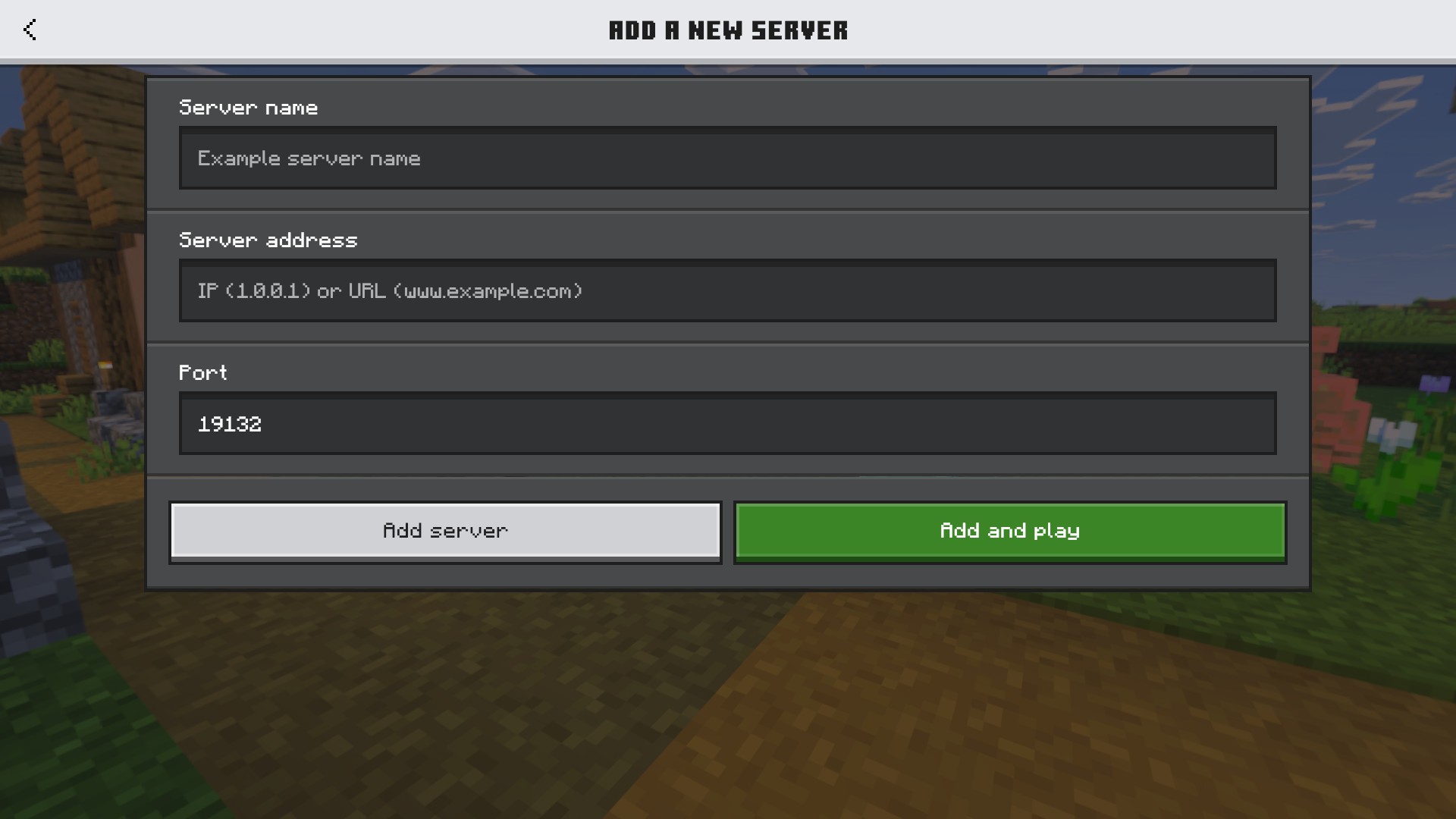
Your server's IP address is shown prominently in the AMP dashboard and in your Octohost billing portal. It's a clean dedicated IPv4 — something like 104.21.18.92. Share it with your friends.
Default Minecraft port is 25565, so they connect using just the IP — no port number needed. In Minecraft's multiplayer menu, they click Add Server, paste your IP, and connect.
"A private server changes how you play the game entirely. No strangers destroying your builds, no admin abuse, no pay-to-win. Just you and your friends." — Octohost customer
Troubleshooting Common Issues
Can't connect to the server
Check the AMP dashboard first — is the server actually running? The status indicator should be green. If it's red or yellow, click Start and wait 30 seconds. If the server crashes on startup, check the console for error messages. The most common cause is a plugin incompatibility — try disabling recently added plugins.
Server is lagging (low TPS)
Use the in-game command /tps (available on Paper servers) to check your tick rate. Healthy servers run at 20 TPS. If you're below 15:
- Switch from vanilla to Paper if you haven't already
- Reduce your view distance:
view-distance=8is a good middle ground - Clear dropped items:
/kill @e[type=item] - Check for chunk loading issues — farms that keep thousands of chunks loaded are a common culprit
Java out of memory errors
In AMP → Java Settings, make sure your -Xmx value is set to roughly 80% of your plan's available RAM. For a 2 GB plan, use -Xmx1536M. For 4 GB, use -Xmx3G.
What Next?
You're live. Here's what to explore next:
- Read our DDoS protection guide to understand what's already keeping your server safe.
- Set up a custom domain for your server IP using a free DNS service like FreeDNS.
- Create a Discord server for your community and link it to your Minecraft server using a bot like JMusicBot.
- Explore the PaperMC forums for plugin recommendations and optimisation tips.
Have a question that isn't answered here? Our support team responds within the hour — send us a message or drop by Discord.